If you have this guide, you should have been provided with login details and have already been set up with a multifactor authenticator on your phone or email.
1. Navigate to this website. https://microagechlli.hostedrmm.com:8040/ or chwk.tech
1. Navigate to this website. https://microagechlli.hostedrmm.com:8040/ or chwk.tech
2. Login (Upper right corner) with the username and password you've been provided (username usually is your email)
3. It will prompt you for 2FA, this is the code generated by the multifactor authenticator set up on your phone (usually).
4. Once you're signed in, click join (if you have more than one computer select the one you want). And presto, you're connected to your computer in the office.
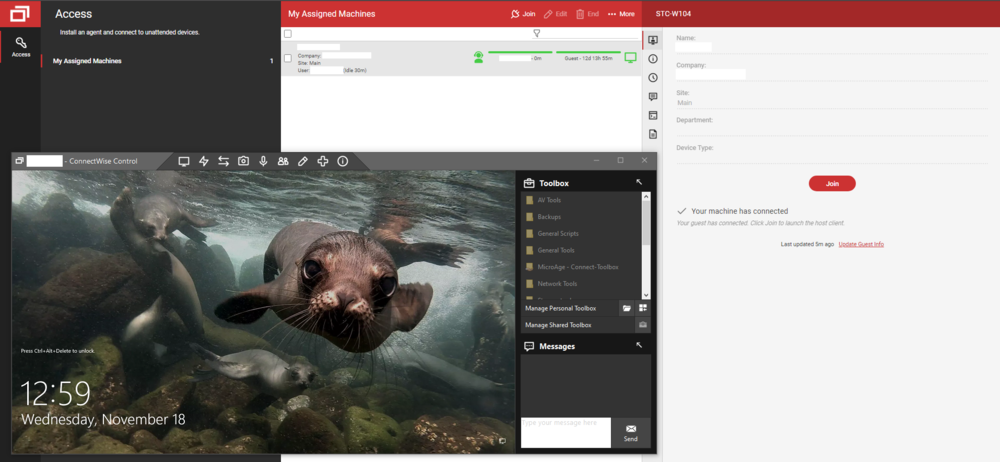
This will function just like if you were sitting at your desk, so sign in and you can access everything as you normally do.
Troubleshooting Steps
If you're having issues signing in, try using the Google Chrome browser.
If you're using Chrome already, try opening an "incognito window" and try it there.
If you're using Chrome already, try opening an "incognito window" and try it there.
How do I see my multiple monitors? Or why is the screen black when I connect?
Make sure to use the monitor switching to see either both monitors at once, or one or the other . You can either click on the picture of the screen OR click the arrow to pop out additional windows:

I need to log in but can't hit Ctrl+Alt+Del
Go here to send a ctrl+alt+del:

I can't type or click!
Make sure this setting is off.

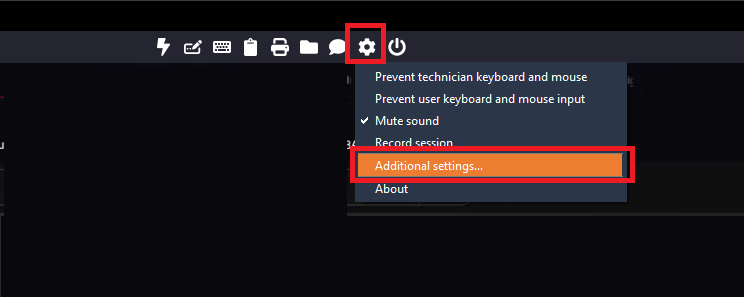
I want to print on my printer at home.
Turn this on, wait about 5-10 minutes, and your printer should appear as an option on the computer you are remoted into.

NINJA RMM Troubleshooting
Multiple monitors?
Run the app twice (or once for each monitor you need)
How to blank the remote screen
Multiple monitors?
Run the app twice (or once for each monitor you need)
How to blank the remote screen